
Images can make technical documents easier to understand, especially when explaining software interfaces, installation processes, diagrams, or step-by-step instructions. A screenshot can show users exactly where to click, while a diagram can explain a process that would otherwise require several paragraphs.
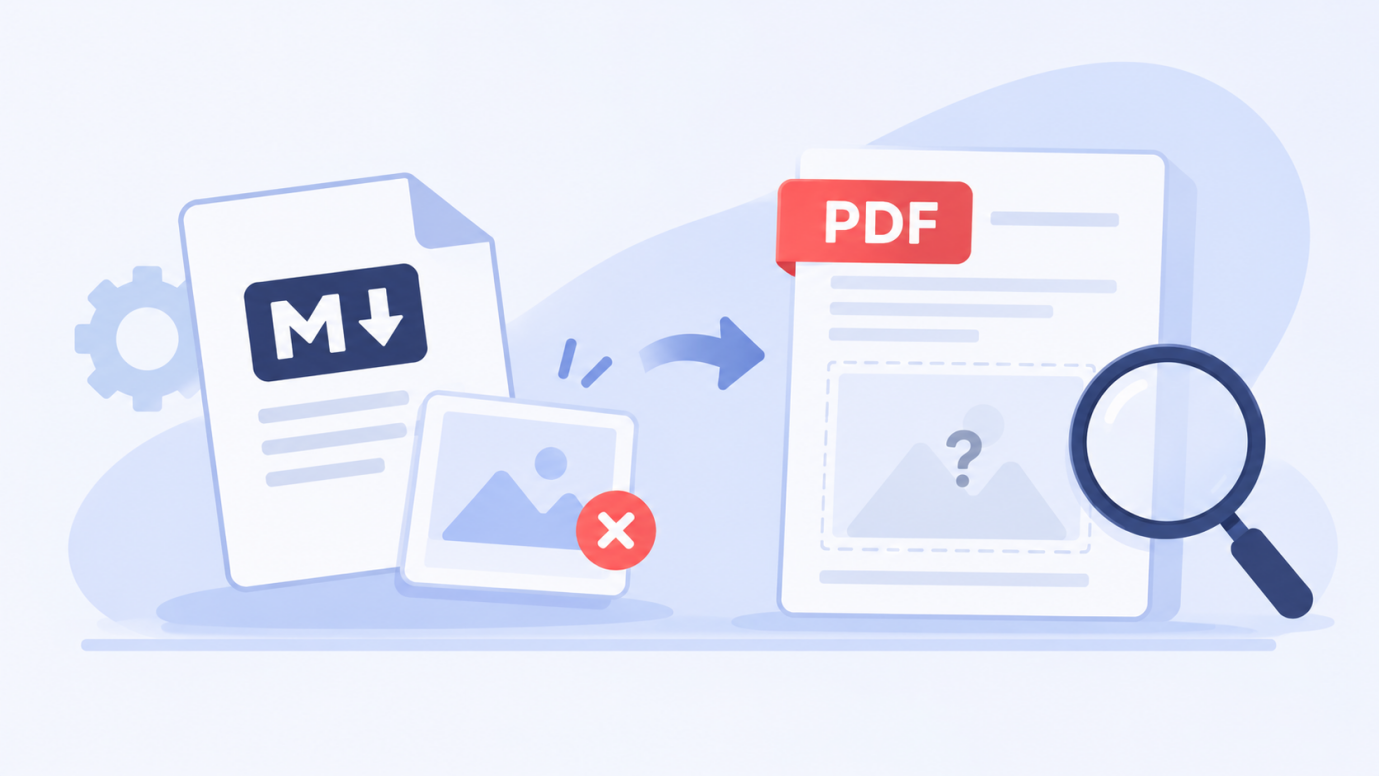
However, images do not always appear correctly when a Markdown file is converted into PDF. Sometimes an image is visible in the original editor but disappears from the exported document. In other cases, the image appears in the wrong position, looks distorted, or displays without its intended caption.
These problems can make technical documentation confusing and reduce its usefulness. Fortunately, most missing-image issues can be investigated by checking a few important details before and after conversion.
1. Check the Markdown Image Reference
The first place to investigate is the image reference written in the Markdown file.
Markdown uses a simple syntax to display images. A typical image reference looks like this:

The text inside the square brackets provides alternative text, while the path inside the parentheses identifies the image file.
Even a small mistake in the path can prevent the image from appearing. For example, a file named dashboard.png will not necessarily be found if the Markdown reference points to Dashboard.png. File paths can be case-sensitive depending on the operating system and conversion environment.
Check the following details:
- Is the image filename spelled correctly?
- Does the file extension match the actual image?
- Is the folder name correct?
- Are spaces and special characters handled properly?
- Does the image reference point to the correct location?
Correcting these details is a useful first step before investigating more complicated conversion problems.
2. Verify That the Image Source Is Accessible
A correct image reference does not always mean the image can be accessed during conversion.
For example, a Markdown file may reference an image stored in a folder on a local computer. The image works perfectly in the original environment, but the conversion tool cannot access it because the file was not uploaded or included with the Markdown document.
This situation is common when documents are moved between computers or shared with other people.
Relative paths require particular attention. If a Markdown file is stored in one folder and its images are stored in another, changing the folder structure can break the references.
A practical solution is to organize the Markdown file and its supporting images together before conversion. Keep related files in a predictable folder structure and avoid moving individual images after creating their references.
For online image sources, check whether the URL opens correctly in a browser. Also consider whether the website requires authentication or blocks external requests.
If an image is hosted on a private server, it may not be available to the conversion service. In that case, using an accessible image source or an appropriate local file arrangement may help.
3. Review Image Formats and File Sizes
Another possible reason for missing images is an unsupported or problematic image format.
Common formats include PNG, JPEG, and GIF. However, support for particular formats can vary between editors and conversion tools.
If an image does not appear, consider testing a standard format such as PNG or JPEG. This can help determine whether the issue is related to the original file format.
File size is also worth checking. Very large images can increase document processing time and make the resulting PDF unnecessarily heavy.
Before adding an image to a technical document, consider whether its dimensions are appropriate for the intended page layout.
For example, a full-screen software screenshot may contain more detail than readers need. Cropping unnecessary areas can make the image easier to understand and reduce the overall document size.
4. Add Useful Captions and Alternative Text
An image should provide information rather than simply decorate a page.
Alternative text helps describe the purpose of an image, particularly for readers using assistive technologies. It also provides context when an image cannot be displayed.
For example:

This description explains what the image contains and gives readers an idea of its purpose.
Captions provide additional context below an image. They can explain what users should notice or how the image relates to the surrounding instructions.
A good caption might say, "Figure 1: The account settings page where users can update their profile information."
Keep captions short and informative. Avoid repeating the entire paragraph that already explains the image.
5. Inspect Image Placement in the Markdown Document
Sometimes an image exists and loads correctly, but its placement creates confusion.
For instance, a screenshot might appear between two unrelated paragraphs or become separated from the instructions that explain it.
Review the surrounding content and make sure every image appears close to its relevant explanation.
For technical guides, it is often helpful to introduce an image before displaying it. A short sentence can tell readers what they are about to see and why it matters.
Also check the spacing around image references. Consistent paragraph breaks can make the Markdown source easier to maintain and help preserve a cleaner document structure.
6. Convert the File and Review the PDF
After checking the image references, source accessibility, formats, and placement, prepare a new PDF version.
A practical way to reproduce the issue is to use a small Markdown document containing one or two sample images. Convert it and compare the exported result with the original file.
The iBoomto Markdown to PDF tool can be used for this conversion process. It provides an option for turning Markdown content into a PDF that can be inspected before distribution.
Open the resulting document and check whether each image appears in the correct location. Review image dimensions, captions, spacing, and page breaks.
If an image is still missing, return to the original Markdown file and investigate its reference or accessibility. Repeating the conversion after making one change at a time can help identify the actual cause.
7. Use a Consistent Review Process
When preparing documents regularly, checking images should become part of the normal publishing process.
A simple review checklist can prevent many avoidable problems:
- Confirm that every image reference is correct.
- Check that supporting files are available.
- Verify external image URLs.
- Use suitable image formats.
- Include meaningful alternative text.
- Add captions where additional context is necessary.
- Review image placement in the exported PDF.
- Confirm that images remain readable at normal zoom levels.
Document preparation tools can support this workflow, but they should not be expected to correct every image problem automatically.
For additional document-related resources and conversion options, users can explore iBoomto. The platform offers document tools that may be useful when working with different file formats and preparing digital materials.
Conclusion
Missing images in Markdown PDFs can result from incorrect file paths, inaccessible sources, unsupported formats, or problems with document layout. Identifying the cause requires checking both the original Markdown file and the exported PDF.
By verifying image references, organizing supporting files, writing useful captions, and inspecting the final document, writers can reduce common publishing problems.
A consistent review process makes technical documentation more reliable and helps ensure that important visual information reaches readers as intended.