

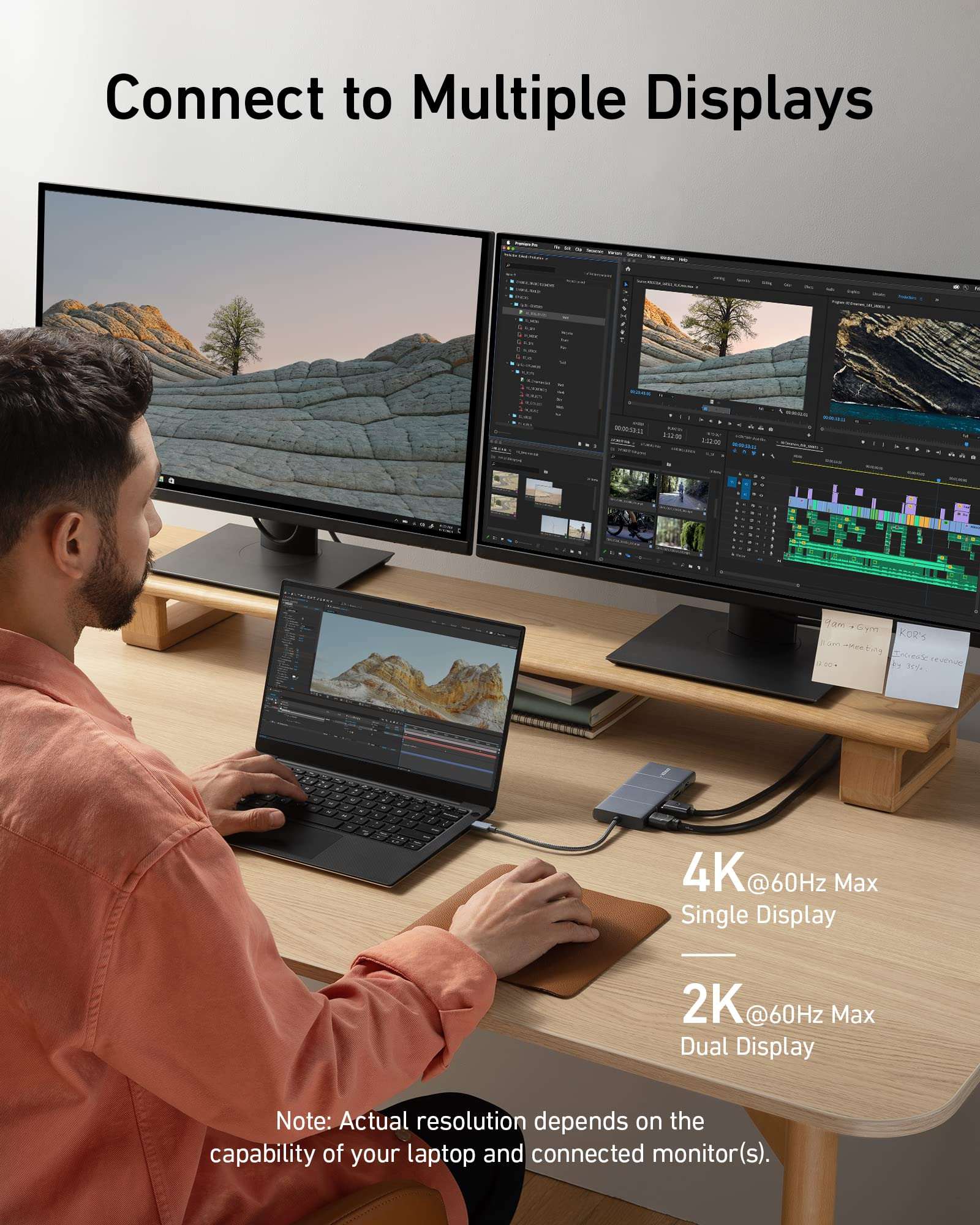
USB-C has made connecting modern devices easier, but it has also created some confusion. Two cables may have identical-looking connectors and still perform completely different jobs. One might connect a laptop to an external monitor, while another transfers files between a phone and a computer. This is why understanding the difference between a usb c to hdmi cable and a USB C data cable matters before choosing an accessory. Although both use the familiar USB-C connection on at least one end, their internal technology and intended functions are not necessarily the same. Knowing what each cable supports can help you avoid compatibility issues and choose the right one for your setup.
Similar Connectors Do Not Mean Identical Features
The USB-C connector is a compact, reversible design used across laptops, smartphones, tablets, and other electronics. Its versatility allows manufacturers to support different functions through the same physical connection. However, the connector itself does not tell you everything a cable can do. Some USB-C cables are designed mainly for charging. Others support data transfer, video output, or several functions together.
For example, a basic USB-C charging cable may connect a phone to a laptop but offer limited data capabilities. A full-featured cable may support faster file transfers, depending on the specifications of both connected devices. The same principle applies to video. A USB-C port must support an appropriate video-output technology before it can send a display signal to an HDMI monitor.
What Does a USB C to HDMI Cable Do?
A USB C to HDMI cable connects a compatible USB-C device to a display with an HDMI input. It is commonly used to connect laptops, tablets, or supported smartphones to televisions, monitors, and projectors. The connection can make several activities more convenient:
- Presentations: Display slides, documents, and other visual material on a larger screen.
- Office work: Use an external monitor to create additional workspace.
- Entertainment: Show compatible video content on a television.
- Education: Connect a laptop to a classroom display or projector.
Many USB-C to HDMI connections can carry both video and audio. This means a compatible television or monitor can receive sound through the same cable. One important detail is video compatibility. The USB-C port must support video output, commonly through DisplayPort Alt Mode or a compatible Thunderbolt connection. A USB-C connector that only supports charging and data transfer cannot automatically send video to an HDMI display.
What Is a USB C Data Cable Designed For?
A USB C data cable is primarily used to transfer information between compatible devices. You might use one to move photos from a smartphone to a computer, copy documents to an external storage drive, or connect accessories. Its performance depends on the USB standard supported by the cable and connected devices. Some cables offer basic USB 2.0 data speeds, while others support faster USB 3.x or USB4 capabilities. The actual transfer rate depends on the slowest part of the connection.
A data cable may also support charging, but charging speed varies. Some cables are designed for higher power delivery, while others have more limited power capabilities. This is why checking the product specifications is important. A cable advertised as USB-C does not automatically support the fastest data transfer, highest charging power, or video output.
Can One Cable Handle Both Jobs?
Sometimes, yes. Certain USB-C cables support data transfer, charging, and video-related functions. However, not every USB-C data cable can connect directly to an HDMI display. A regular USB-C to USB-C data cable has two USB-C connectors. To connect it to an HDMI screen, you generally need a compatible adapter or a display connection designed for that purpose.
Similarly, a USB-C to HDMI cable is not automatically suitable for transferring files between a phone and a computer. Its primary function is sending display output to an HDMI device. If you want one accessory for several tasks, read its technical specifications carefully. Look for clearly stated support for video output, data speed, and charging power rather than relying on the connector shape or product title.
Five Details to Check Before Buying
Choosing the right cable becomes easier when you consider how you plan to use it.
1. Identify the main purpose
Decide whether you need to connect a display, transfer files, charge a device, or perform several tasks. This helps narrow down the type of cable you need.
2. Check device compatibility
Confirm the capabilities of the USB-C port on your laptop, phone, or tablet. For HDMI video output, look for DisplayPort Alt Mode or compatible Thunderbolt support.
3. Review data transfer speed
If you regularly move large video files or backups, check the supported USB standard and maximum transfer speed. A high-speed cable will not deliver its full potential if the connected devices support a slower standard.
4. Consider charging requirements
If charging is important, review the cable's supported power rating and compatibility with your charger and device. Do not assume every USB-C cable supports the same charging performance.
5. Choose a practical length
A short cable is often convenient for desk connections and portable use. A longer cable may help when your laptop is positioned farther from a monitor or television. Choose a length that suits your workspace without creating unnecessary clutter.
What to Do When a Connection Fails
If an external display does not appear, check that the HDMI screen is using the correct input and that the USB-C port supports video output. Reconnect the cable and restart the connected device if necessary. For data-transfer problems, try another USB port and confirm that the usb c data cable supports data rather than charging only. Check whether the computer recognizes the connected device and whether file-transfer permission is enabled on your phone. If charging is inconsistent, test another compatible charger and cable. These simple checks can help identify whether the problem comes from the accessory, device settings, or port.
Conclusion
A USB C to HDMI cable and a USB C data cable may look similar, but they serve different purposes. One is intended to connect compatible devices to HDMI displays, while the other transfers information between electronics. Some USB-C cables combine multiple capabilities, but those features should never be assumed. Before purchasing, consider your main task, device compatibility, data speed, charging needs, and video requirements. Understanding these differences makes it easier to select an accessory that works with your equipment and supports your everyday routine.
Frequently Asked Questions
Is a USB C data cable the same as a USB C to HDMI cable?
No. A data cable transfers information between compatible devices, while a USB C to HDMI cable connects a compatible USB-C video source to an HDMI display.
Can every USB-C cable connect a laptop to a monitor?
No. The laptop's USB-C port must support video output, and the cable or adapter must be designed for the required display connection.
Can a USB C data cable charge a smartphone?
Many USB-C data cables also support charging, but their power capabilities vary. Check the cable's specifications before using it with a high-power charger.
Does a USB C to HDMI cable transfer files?
Its main purpose is video and audio output to an HDMI display. It should not be treated as a general-purpose file-transfer cable.
How can I tell whether a USB-C cable supports fast data transfer?
Check the listed USB standard and supported transfer speed in the product specifications. The connected devices must also support that standard to achieve the advertised performance.


1 thought on “USB C to HDMI vs. USB C Data Cable: Understanding Their Different Uses”